

Getting Connected with Ticket Talk
For Excavators, Operators, and Locators
Ticket Talk offers quick, organized, and dependable ticket communication. With real-time updates, Ticket Talk keeps a clear record of conversations between excavators, locators, and operators—helping everyone work together safely and efficiently.
Communication Simplified
Ticket Talk makes communication easier. No need to look for phone numbers or email addresses. Your messages reach the right people quickly and accurately.
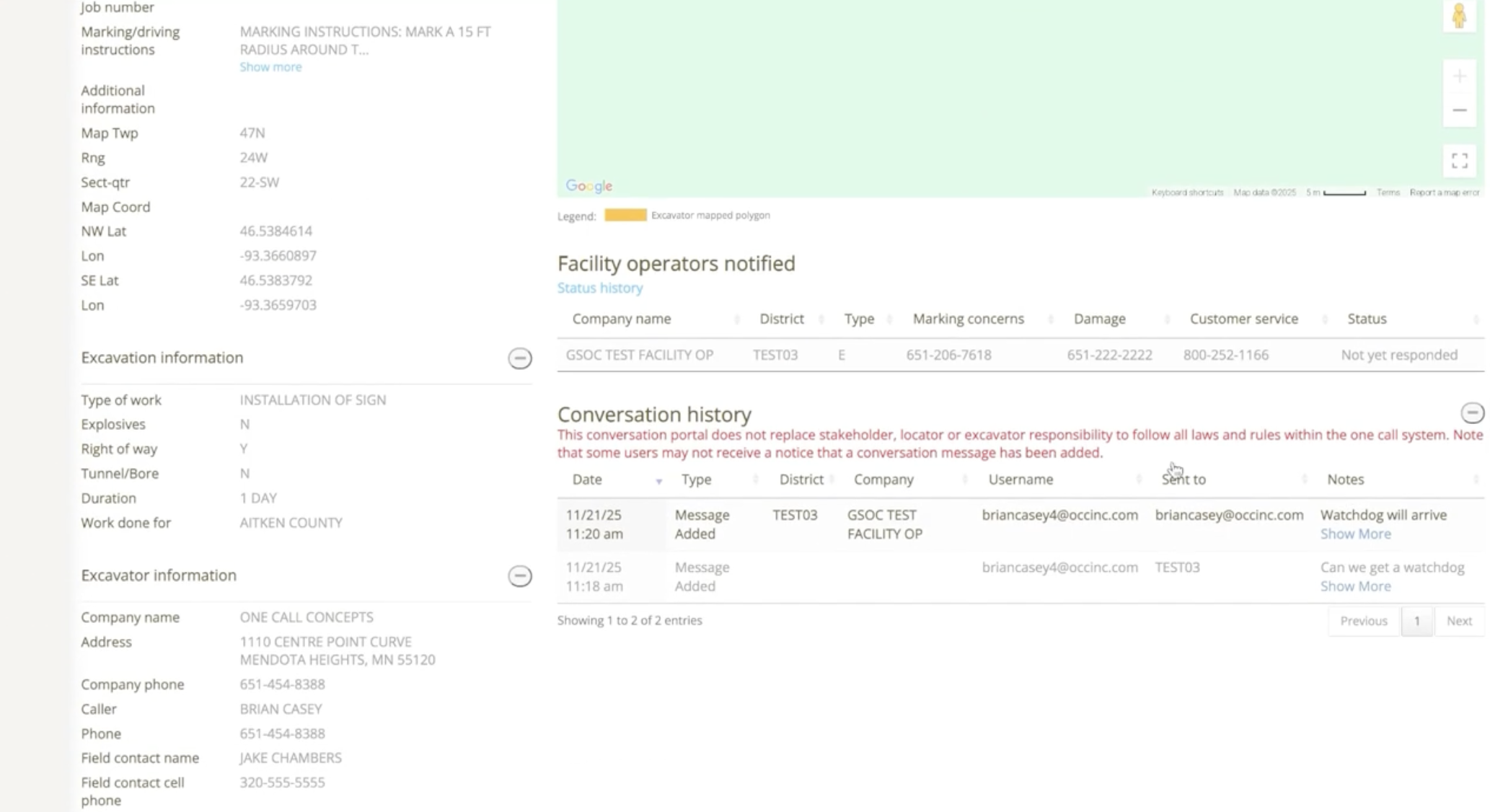
Selected users will receive an email notification whenever a new message is added to a ticket. Message notifications are also presented in the Ticket Check/Locator Tickets and My Tickets platforms. Ticket Talk maintains a public record of all conversations associated with a ticket, which makes it ideal for documenting agreements.
Learn About Ticket Talk
A Few Important Notes
- Ticket Talk is only intended to supplement communication but does not override legal responsibilities.
- Conversations in Ticket Talk do not generate a locate request, nor do they change or update the original notice of planned excavations. Users MUST submit a new ticket to make these changes.
- Only selected companies will receive Ticket Talk messages: make sure you are selecting all relevant parties.
- Given the public record of conversations, users should avoid posting sensitive information, such as access codes, personal phone numbers, or other private details.
Members who don’t use OCC’s Locator Ticket Management software can send and receive Ticket Talk messages through OCC’s web service.
For more information you can contact GSOC at [email protected]
Step-by-Step
Ticket Talk can be accessed directly through ITIC or through the link provided in the locate ticket. To start a conversation:
- Go to My Tickets and select the ticket you want to discuss.
- Click Add Conversation, then type your message (e.g., “Do you agree to reschedule ticket 253360570for Monday 12/09/25?”).
- Choose the utility you want to contact, then click Save; your message will appear in the Conversation History.
- If your message isn’t fully visible, just click Show More.
- Users will receive an email notification when a message is received. A chat bubble will appear next to the ticket number in My Tickets or Locator Tickets. Click on the ticket to view the message, and if you would like to respond, click “add conversation.